How to Track Inventory in QuickBooks with Setup and Reports

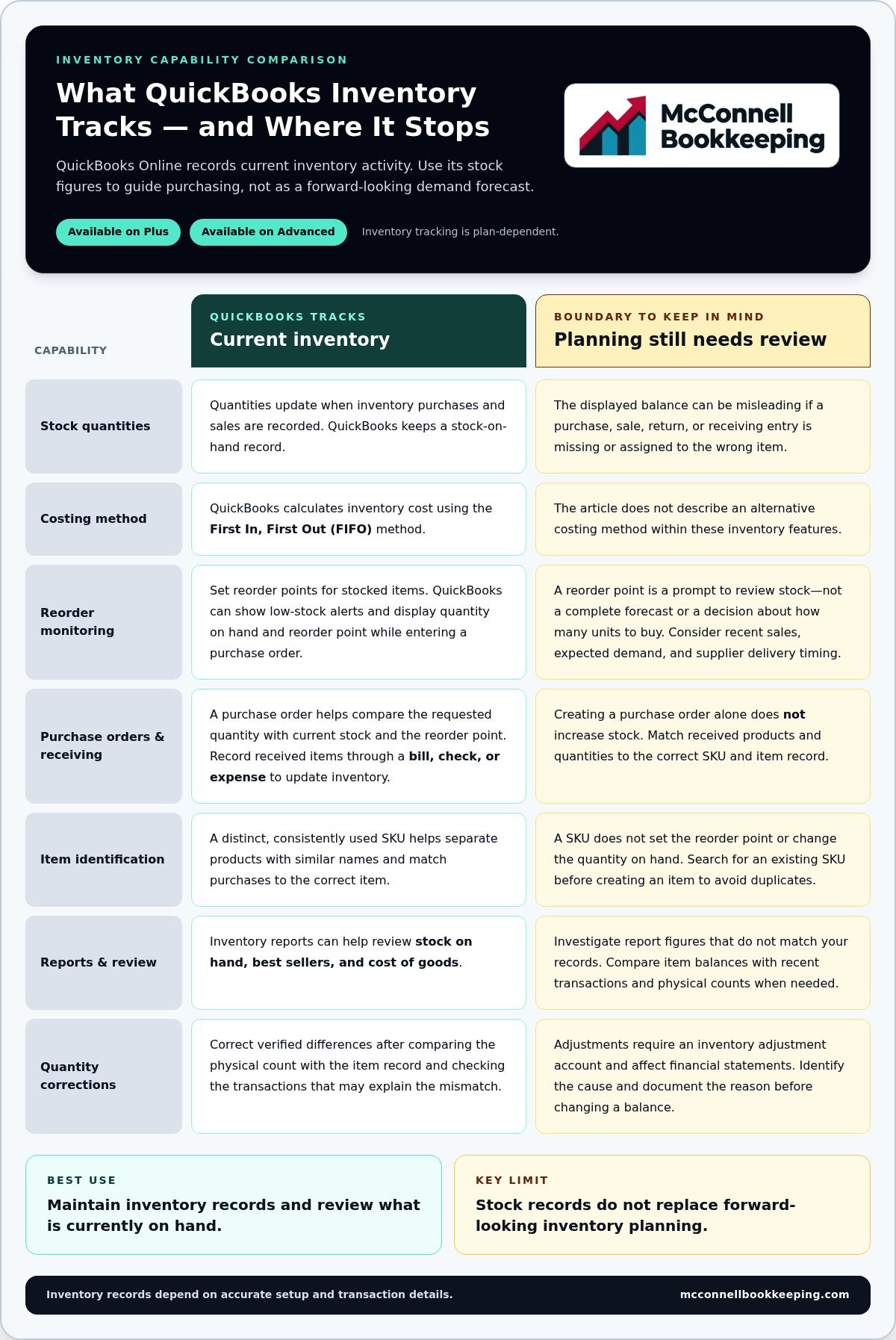
Yes, tracking inventory in QuickBooks Online is available on the Plus and Advanced plans. Quantities update when you record inventory purchases and sales, and QuickBooks calculates inventory cost using the First In, First Out (FIFO) method. It tracks stock on hand, but it is not a forward-looking inventory planning system.
QuickBooks can help you maintain inventory records and review current stock, but accurate results depend on setup and transaction details. Understanding the limits of its inventory features is as important as knowing how to use them.
This guide explains how to set up inventory items and accounts, record purchases and sales, adjust quantities, and review reports. You’ll also learn what QuickBooks tracks, where its limits lie, and how to keep inventory records aligned with your books.
Table of Contents
QuickBooks Inventory Tracking, Can it be done?
Yes. QuickBooks Online’s Plus and Advanced plans include features for tracking stock on hand and reorder points. When tracking inventory in QuickBooks, use these figures to guide purchasing, but treat them as a record of current stock, not a forward-looking forecast.
Assign SKU NumbersGive every inventory item a distinct SKU, and use it consistently in the item record and purchasing workflow. A SKU separates products with similar names, such as small and large versions of the same item. It does not set the reorder point or change the quantity on hand.Before creating an item, search for its existing SKU to avoid duplicate records. If a supplier uses a different code, record it separately from your internal SKU so each purchase can still be matched to the right QuickBooks item.
Check Stock on HandOpen the inventory item details to review its quantity on hand and reorder point. QuickBooks Online can also display both while you enter a purchase order quantity. If recent sales, returns, or receiving entries may have changed the balance, compare the displayed quantity with a physical count before ordering.For example, if QuickBooks shows fewer units than you count on the shelf, investigate the transactions before relying on the balance. A sale assigned to the wrong SKU or an unrecorded purchase can make the displayed stock misleading.
Set a reorder point for each stocked item to indicate when purchasing action should begin. QuickBooks Online can notify you when stock reaches a low level if you set a reorder point or low-stock alert. Review these settings when an item’s sales pattern or supplier lead time changes.Base each threshold on an actual purchasing decision. A fast-selling item may need an earlier trigger than a slow-moving product, while a seasonal item may need a different threshold during peak demand.
Use reorder points as prompts, not as a complete inventory forecast. QuickBooks Online is better suited to tracking inventory after transactions than to forward-looking planning. A reliable approach to tracking inventory in QuickBooks pairs the current stock record with a separate review of past sales, expected demand, and supplier delivery timing.For example, a low-stock alert can flag an item for review, but it cannot determine whether an upcoming order justifies buying extra units. Consider the item’s recent movement and planned sales before setting the purchase quantity.
When entering a purchase order, compare the requested quantity with the displayed stock and reorder point. This can help identify an order that may be too small or unnecessarily large. The purchase order itself does not increase inventory. Stock updates when you record received items through a bill, check, or expense.After receiving a shipment, match its products and quantities to the correct SKU and QuickBooks item. This keeps the on-hand figure useful for the next reorder decision and reduces confusion between items with similar descriptions.
Adjusting inventory quantities and adjustment accounts
To correct inventory records, compare a physical count with QuickBooks quantities, then record justified differences using an adjustment account. Each adjustment affects financial statements, so identify the cause before changing the balance.
Count the item and compare records. Choose one product, count the units physically available, and compare the count with its QuickBooks quantity. Check sales, returns, damaged goods, and receiving records for entries that might explain a difference. For example, a short count of boxed filters could reflect damage or a sale assigned to the wrong item.Keep each count tied to its specific item record. Combining similar products can hide errors, especially when package sizes or descriptions differ.
Identify why the quantity differs. Review transactions connected to the item before making an adjustment. Look for an unrecorded receipt, duplicate sale, return, or entry assigned to another product. Correct the source transaction if it explains the discrepancy. Use an adjustment for a verified physical difference that ordinary transactions do not capture.Add a clear explanation, such as “damaged during storage” or “counted units differ from item record.” A useful memo helps anyone reviewing the account understand why the balance changed.
Select an inventory adjustment account. QuickBooks Online requires an inventory adjustment account for quantity adjustments. Choose an account that reflects the reason for the change and follows the categories already used in your books. A damaged item and a counting correction may need different explanations, even if both reduce the recorded quantity.Because adjustments affect financial statements, do not select an account simply to save the entry. Review the account’s purpose and existing bookkeeping treatment before posting the change.
Enter the corrected quantity and document the entry. Select the exact inventory item, enter the verified quantity change, choose the adjustment account, and explain the reason in the memo. Check the item and account before saving. Selecting the wrong product can move value between records without explaining the physical count.After saving, compare the updated item record with your count notes. If the balance still differs, investigate the underlying transactions rather than creating another adjustment to hide the first discrepancy.
Review adjustments as part of your inventory routine. Businesses using periodic inventory accounting may count inventory monthly or quarterly, then adjust cost of goods sold or expenses. Use the same counting method each period so recorded changes reflect stock movement rather than inconsistent counting practices.If supplier paperwork contributes to recurring mismatches, matching bills with received goods can clarify whether the issue lies in purchasing records or physical quantities. Organized accounts payable management supports cleaner supplier records, while adjustment entries remain reserved for verified inventory differences.
Inventory setup, purchase orders, and sales adjustments
Set up item records and accounts before entering transactions so purchases and sales update the intended quantity and value. Accurate item details and recording what actually happened are essential to tracking inventory in QuickBooks.
Set up the inventory accounts. Create an inventory value account with Account Type set to Current assets and Detail Type set to Other current assets. Create a separate Cost of Goods Sold account, then choose the closest matching detail type. If you are unsure which detail type fits, use Other Costs of Service - COS. These accounts separate unsold goods from the cost assigned to sold items.Review account names before linking items. Clear labels make it easier to distinguish inventory value from expenses when reviewing transactions.
Create the inventory item record. Add the product as an inventory item and enter its description, sales price, purchase information, and associated accounts. Link it to the inventory asset and Cost of Goods Sold accounts. When useful, use separate inventory asset accounts for different categories, such as cars and motorcycles.Keep item names and identifiers distinct. For example, label different models or sizes separately so a purchase or sale is not assigned to a similar but incorrect product record.
Enter purchase orders, then record what arrives. A purchase order documents what you plan to buy, but does not change inventory levels. When the vendor shipment arrives, record the received inventory through a bill, check, or expense. QuickBooks increases inventory on hand by the number of items received.Enter the quantity actually delivered, not just the quantity ordered. If a vendor sends a partial shipment, recording only the units received keeps the on-hand balance aligned with the delivery.
Assign purchases to the inventory asset account. Use the appropriate account when recording an inventory purchase to keep its value accurately represented. Match the vendor, item, and received quantity to the purchase documents. If an order includes two product types, enter each under its own item record and account.For businesses tracking inventory in QuickBooks, this matching step connects quantities to their recorded asset value. It also makes it easier to trace a balance to a vendor transaction when reviewing the books.
Record sales through an invoice or sales receipt. QuickBooks reduces inventory on hand when you record an inventory sale on either form. The accounting entry transfers the product’s original cost: debit Cost of Goods Sold and credit the inventory asset account for that original cost, not the sales price. This reduces inventory value and increases cost of sales.Before saving, check the selected item and quantity. Accurate tracking inventory in QuickBooks depends on recording the product sold and its cost correctly, so review the transaction if the resulting stock or account balance looks unexpected.
Using reports to review inventory status and performance
QuickBooks Online reports connect inventory quantities with sales activity and recorded costs. Review the figures together to identify items that need attention.
Start with on-hand inventory. Run an inventory report and review each item’s quantity on hand. Compare the QuickBooks figure with a recent physical count of the same product. For example, if the report shows a different balance for a specific chair model, trace its purchases, sales, returns, and adjustments before changing the record.Check item names and SKUs as you review. Similar descriptions can make one product’s quantity look like another’s, especially when sizes or versions share a name. Matching a count to the correct item record gives you a stronger basis for action.
Use best-seller information to identify movement. Review best-seller results to see which items contribute most to recorded sales. Compare a fast-moving product, such as a popular replacement part, with slower sellers. This helps identify items that need closer stock monitoring and whether a low quantity reflects normal demand or an unusual sales pattern.Best-seller results show recorded sales, not future demand. Check the reporting period and consider promotions, seasonality, or product availability before treating a temporary sales increase as a lasting trend.
Compare inventory status with cost of goods. Review cost-of-goods information alongside on-hand quantities. The quantity report shows units recorded as available, while cost information helps explain the value associated with goods sold. If an item has sales but its cost pattern looks inconsistent, inspect the item setup and related transactions.For example, a sale of a particular appliance should reduce inventory and record the product’s original cost as cost of goods sold. Reviewing both measures can help identify transactions that need attention.
Choose a consistent reporting period. Use the same date range when comparing inventory performance across reports. A best-seller view for one period cannot be fairly compared with cost information from another. Record the selected dates with your review so someone else can reproduce the same view.For example, compare sales and cost figures for the same business period, then investigate meaningful changes by item. Consistent periods make shifts in product movement easier to interpret.
Turn report findings into follow-up actions. Note items with unusual on-hand balances, changing sales movement, or cost figures that need investigation. Check the underlying transactions before making adjustments. A report points to where to look; source records can show whether the cause was a sale, receipt, return, or correction.Keep a brief review note with the item name, report period, and next action. This connects a report finding to a later purchasing or bookkeeping decision without relying on memory.
QuickBooks inventory tracking capabilities and limitations
QuickBooks Online can track inventory quantities and calculate item costs, but its features depend on your plan and workflow. Use it to maintain current records, while accounting for its limits before relying on it for planning or location-level decisions.
Calculate Inventory Value and Cost of Goods SoldCheck the item’s cost method and linked accounts before reviewing its value. QuickBooks Online calculates inventory cost using the First In, First Out (FIFO) method. When you record a sale on an invoice or sales receipt, QuickBooks reduces inventory on hand and records the product’s original cost as cost of goods sold, not its sales price.That entry reduces the inventory asset and increases cost of sales. For example, a sale may bring in revenue at the listed selling price, while the cost-of-goods-sold entry reflects what the item originally cost. Review the item setup if the cost or asset figures look inconsistent.
Track Inventory Across LocationsQuickBooks Online’s standard inventory quantity is tracked by item, so keep location-level counts separately if you need to see stock by site. Use consistent location labels in your inventory records and count sheets, then reconcile each site’s records against the total quantity in QuickBooks.For example, a Phoenix warehouse and a retail counter may hold the same product. Record the location in your supporting count details, and document transfers between sites so the combined count remains clear. Do not treat an item’s total QuickBooks quantity as a breakdown by location.
Resolve Common Tracking ErrorsCompare the item record with the source transaction before changing quantities. A purchase order alone does not increase stock; recording received goods through a bill, check, or expense updates inventory. If stock appears too low, check whether the shipment was recorded and the correct item selected.For a sales mismatch, inspect the invoice or sales receipt for the item and quantity entered. Non-inventory products and services do not have quantity tracking in QuickBooks Online, so confirm that the product is set up as an inventory item when quantity tracking is needed. Use an adjustment only for a verified count difference, and select its account carefully because the entry affects financial statements.
Match the plan to the required level of tracking. QuickBooks Online inventory features are available on Plus and Advanced, and both plans offer the same inventory management functionality. Essentials and Simple Start allow users to track inventory asset value manually, but do not provide the same quantity-tracking features.Choose a plan based on whether you need quantities updated through sales and purchases. QuickBooks works best for after-the-fact inventory tracking, not forward-looking planning. Use reports and recorded transactions to understand current stock, then plan future purchases around demand and delivery needs.
McConnell Bookkeeping: Monthly Bank Reconciliations
McConnell Bookkeeping helps organize the financial records behind inventory decisions through Monthly Bank Reconciliations. Matching bank activity with QuickBooks transactions can help identify missing or miscategorized payments, while Financial Statement Preparation provides clearer reports for reviewing business performance.
If inventory transactions have made your books difficult to follow, Books Cleanup can help organize those records. This supports your inventory workflow, but bank reconciliations do not verify physical stock counts or replace inventory adjustments. Clear, consistent books make balances easier to interpret and discrepancies easier to investigate.
Contact McConnell Bookkeeping to discuss your bookkeeping needs, or visit mcconnellbookkeeping.com.
Build a Clearer View of Your Business
Sound inventory decisions depend on records that remain useful beyond the stockroom. As tracking inventory in QuickBooks becomes part of your routine, connect inventory activity with your wider financial picture. This perspective helps you use your records to guide decisions, rather than treating bookkeeping as a task that ends when transactions are entered.
McConnell Bookkeeping supports that foundation with Monthly Bank Reconciliations, Financial Statement Preparation, and Books Cleanup. Reconciliations help keep account records aligned, while organized books and clear financial statements make it easier to assess business activity and plan next steps.
For support that fits your bookkeeping needs, start a conversation with McConnell Bookkeeping. A clearer set of books can help you move forward with confidence.
Frequently Asked Questions
How do I add inventory products and enter starting quantities in QuickBooks?
Add each product as an inventory item in QuickBooks Online, then enter its starting quantity and value for the date you begin tracking it. Count physical stock first and confirm that each SKU matches one item record. For example, distinguish a case from a single unit so purchases and sales use consistent units. Compare the opening inventory value with the inventory asset account, and avoid entering the same opening balance twice.
How do I record inventory purchases, sales, and returns in QuickBooks?
Record a purchase through the bill, check, or expense used for the vendor payment, entering the items and quantities received. For sales, use an invoice or sales receipt and select the correct inventory item. For a customer return, use the transaction type that reflects whether you are issuing a credit or refund. If the goods return to sellable stock, make sure the inventory record reflects the physical return.
How do I adjust inventory quantities and values in QuickBooks?
Count the affected item, review its transactions, and adjust the quantity only after identifying the reason for the difference. For example, distinguish damaged stock from a missed receipt so the entry explains what changed. Select the inventory adjustment account carefully because adjustments affect financial statements. If the quantity is correct but the value looks wrong, review the item’s cost and related purchase or sales entries before changing its quantity.
How does QuickBooks inventory tracking compare with dedicated inventory management software?
QuickBooks tracks stock on hand, calculates inventory cost using FIFO, and provides inventory reports. It is better suited to after-the-fact tracking than forward-looking planning, and it does not offer inventory assemblies.
How do I turn on inventory tracking in QuickBooks?
Inventory tracking is available on QuickBooks Online Plus and Advanced. Set up your inventory accounts and items to begin tracking stock.



Comments