Convert to QuickBooks Online in Gilbert & Compare Reports

The file transfer may take only a few minutes, but plan for a half day or longer for the full QuickBooks Desktop-to-Online workflow. For businesses converting to QuickBooks Online in Gilbert, the time also depends on preparing the company file, moving payroll at an appropriate point in the cycle, and resolving any data that doesn’t convert as expected.
The difference between transferring a file and completing the transition matters: a quick import does not mean the books are ready to use. Decide which records to bring over, then confirm that key figures still match.
This guide explains how to select company data for migration, compare reports between systems, and investigate missing transactions or mismatched totals. It also covers timing, including how to plan around business activity and payroll. A clear sequence for preparation and review helps you understand what to expect and where follow-up may be needed.
Table of Contents
Choosing which company data to migrate
For businesses in Gilbert, QuickBooks Online is cloud-based and uses monthly pricing, while QuickBooks Desktop is installed locally and uses annual license pricing. Choose based on how your team accesses accounting records and which features your workflows require. Then select the company data needed for a dependable start.
Inventory the records your business actively uses. List customers, vendors, open invoices, unpaid bills, account balances, and recent transaction history. For example, a Gilbert contractor may need outstanding customer invoices and supplier bills to continue collections and payments. Keep older records available for reference, but prioritize information that supports current operations and reporting.
Separate active data from outdated detail. Identify duplicate customer or vendor records, inactive accounts, and transactions that no longer support daily decisions. A focused migration list helps distinguish useful history from clutter. Keep records that explain opening balances and unpaid items rather than assuming every historical detail should move.
Review your Chart of Accounts before selecting a plan. QuickBooks Online plan levels have different account limits, with some allowing up to 250 accounts. A converted Chart of Accounts is added to the Online chart rather than replacing it, and unused accounts can’t be deleted to free capacity. Count existing accounts and identify duplicates before importing.
Flag specialized data before choosing a migration method. Attachments and multi-currency data may require a third-party conversion service when moving from QuickBooks Desktop. Note where those records appear, such as receipts attached to expenses or transactions recorded in multiple currencies. This helps you plan for information that may not transfer through the standard company-file process.
Match inventory needs to the right QuickBooks Online plan. QuickBooks Online Plus and Advanced can track inventory. If your business sells stocked products, identify the items and inventory balances needed for ongoing records. If inventory is not part of your operations, focus instead on your account structure and daily workflows.
Choose the new system around your operating needs. QuickBooks Online suits teams that need cloud-based access, while QuickBooks Desktop remains locally installed. Consider how staff work with the books, the data types involved, and the plan’s account capacity. These choices shape a practical migration scope when converting to QuickBooks Online in Gilbert.
Comparing reports after migration
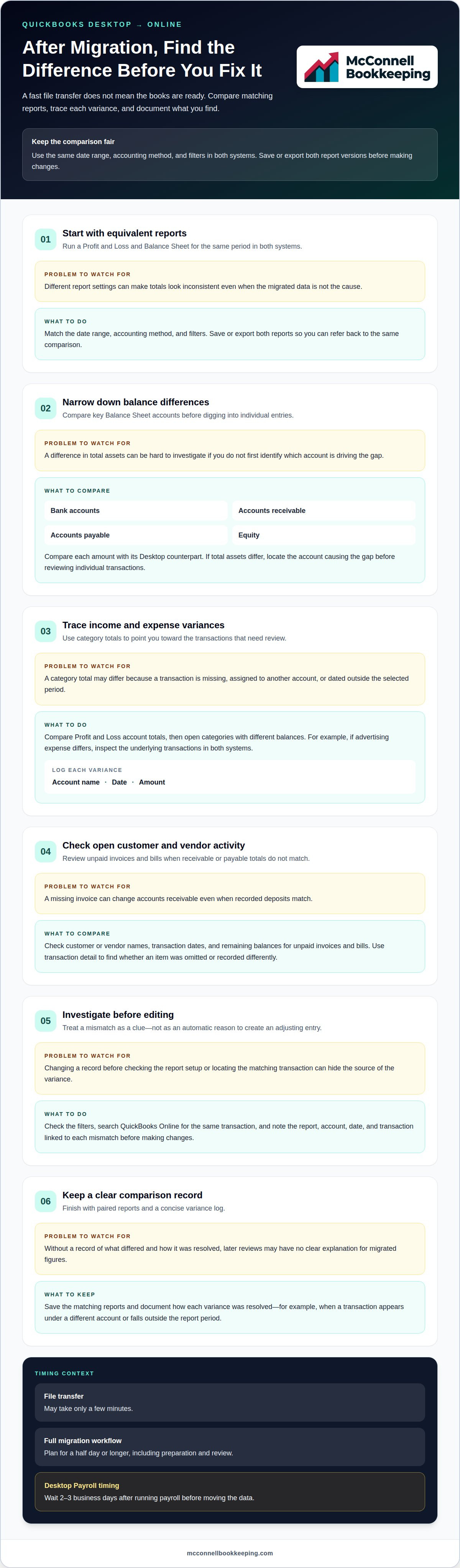
Compare corresponding reports from QuickBooks Desktop and QuickBooks Online to spot differences after migration. Keep each report’s date range, accounting method, and filters consistent. A missing transaction can change totals, so investigate variances before relying on the new figures.
Run equivalent reports in both systems. Start with the Profit and Loss and Balance Sheet for the same period. Set each report to the same accounting method and date range, such as the company’s last completed month. Save or export both versions before making changes. Matching settings helps you trace differences to migrated data rather than report setup.
Compare account balances before transaction detail. Review the Balance Sheet’s bank accounts, accounts receivable, accounts payable, and equity. Compare each amount with its QuickBooks Desktop counterpart. If total assets differ, identify the account causing the gap before reviewing individual entries. This narrows the search and prevents one mismatch from obscuring another.
Check income and expense categories. Compare Profit and Loss account totals, then open categories with different balances. For example, if advertising expense differs, review the underlying transactions in both systems. A transaction may be missing, assigned to another account, or dated outside the selected period. Record the account name, date, and amount for each variance.
Reconcile open customer and vendor activity. Compare unpaid invoices and bills, including customer or vendor names, transaction dates, and remaining balances. An invoice missing from QuickBooks Online may cause accounts receivable totals to differ, even when recorded deposits match. Use transaction detail to locate the item, then determine whether it was omitted or recorded differently.
Trace each variance before editing records. Note the report, account, date, and transaction linked to every mismatch. Check whether report filters differ, then search QuickBooks Online for the same transaction. Since some data may not convert and reports may not match, treat a difference as a clue to investigate, not an automatic reason to create an adjusting entry.
Document the final comparison. Keep the paired reports and a brief variance log explaining how each item was resolved. For instance, note when a transaction appears under a different account or falls outside the report period. This record gives your bookkeeper a clear audit trail for later reviews and explains how you evaluated the migrated figures.
Conversion timing and troubleshooting
The file transfer may take a few minutes, but plan for a full half day or longer for the complete migration workflow. Data may not transfer, transactions may be missing, and reports may differ afterward.
Review Conversion Limitations and RisksIdentify data that may need extra attention before starting. Attachments and multi-currency data may require a third-party conversion service. After conversion, some records may not transfer, and transactions or report totals may differ. Keep the original QuickBooks Desktop company file available during review. A completed import does not guarantee that every record moved correctly.
Schedule the move around business activity. Choose a low-activity day to reduce interruptions, and avoid billing customers during migration. Although the file transfer may finish within a few minutes, the complete Desktop-to-Online workflow can take a full half day or longer. Allow time for preparation, conversion, and initial troubleshooting. Pause customer billing while the data is moving.
Set payroll timing before conversion. QuickBooks Desktop Payroll users should wait 2-3 business days after running payroll before moving their data. This spacing helps keep a recent payroll run separate from the conversion process. QuickBooks Desktop payroll data should also be migrated to QuickBooks Workforce at least a few days before the next payroll run. Add both milestones to the schedule.
Convert QuickBooks Desktop to OnlineOpen the correct QuickBooks Desktop company file and follow the conversion workflow to import it into QuickBooks Online. Confirm the target company before starting, then allow time for the full workflow rather than timing only the transfer. An accountant has 180 days to import a client’s data into QuickBooks Online. Keep this window in mind when coordinating the conversion.
Troubleshoot differences systematically. Compare migrated reports with the original records, then trace mismatches to specific transactions. If a bank-feed issue interrupts work in QuickBooks Desktop, manually importing a bank statement file can provide a temporary way to record activity. Note missing transactions or changed totals, and resolve identified differences before relying on converted reports for decisions.
Treat migration as a scheduled work block, not a brief file-copy task. Allow a full half day or longer for the complete QuickBooks Desktop-to-QuickBooks Online workflow, even if the transfer itself seems quick. This larger window leaves time for preparation, conversion, and review. It also gives the person handling the move time to finish the work instead of treating the transfer as the endpoint.
Choose a low-activity day for the migration and avoid billing customers while it is underway. Make the timing clear to anyone involved in customer billing, and arrange the work for a period when that activity can be paused. Combining a quiet business day with a realistic time allowance makes the schedule fit the migration’s full duration. If the proposed day is busy, reschedule rather than forcing the move into a window that conflicts with billing.
How to convert QuickBooks Desktop to QuickBooks Online
Prepare the QuickBooks Desktop company file. Open the file you intend to move and confirm it represents the correct business. Review its company name, accounting period, and account structure before starting. For example, do not select a test company file if your active records are in another file. Keep access to the original Desktop records so you can investigate differences after import.
Decide how the Chart of Accounts should transfer. The converted Chart of Accounts may be added to the existing Online chart rather than replacing it. Review the existing Online chart before importing, since account lists may need attention after conversion. Review the existing Online chart before importing, especially if it already contains account names from an earlier setup.
Start the company-file import through QuickBooks Online. Sign in to the intended QuickBooks Online company and follow its available conversion workflow for a QuickBooks Desktop file. Confirm the destination company before submitting the file. This is especially important when a business maintains separate books for distinct operations, since importing into the wrong company can create extra cleanup work.
Import a Chart of Accounts separately when appropriate. QuickBooks Online users can import a Chart of Accounts from Microsoft Excel. Use this option when preparing or organizing accounts outside the converted company file, and review the spreadsheet’s account names and categories before importing. For example, compare a “Utilities” account in Excel with the account structure already in QuickBooks Online.
Review the converted company before recording new activity. Check key account lists, customer and vendor balances, and recent transactions in QuickBooks Online. Compare a sample invoice or bill with its Desktop record, including the date and remaining balance. If a record is missing or a report differs, document the account or transaction instead of creating a duplicate entry.
Keep the original Desktop file available during follow-up. Use the source file to investigate unclear balances or transaction details after conversion. If the Online Chart of Accounts includes duplicate names, identify which account supports current bookkeeping before changing records. Reviewing the original file alongside the destination company helps clarify whether a mismatch comes from account setup or imported activity.
Plan the conversion around billing activity: QuickBooks Desktop-to-QuickBooks Online migration should be scheduled for a low-activity day to avoid billing customers during the migration. Choose a suitable low-activity day before beginning and avoid scheduling customer billing during the migration. This helps keep the transfer from coinciding with a busy billing period and gives you a clearer window to review the converted company before recording new activity.
Product status can also inform the timing of a move. QuickBooks Desktop 2023 was discontinued on May 31, 2026. QuickBooks Desktop 2024 won’t be discontinued in May 2027, and it has no sunset deadline. Keep those release details distinct when considering your conversion timing. For users working in the QuickBooks Online Desktop app, it can keep users signed in for six months unless they manually sign out. Manual sign-out is an option if you want to end that signed-in period sooner.
QuickBooks Online conversion checklist and preparation steps
Assign one person to coordinate the conversion. Give that person responsibility for organizing the source file, access, and decisions. For example, a business owner can coordinate with the employee who maintains customer records. Agree on who will communicate changes to staff and who will review the resulting QuickBooks Online company.
Confirm the correct QuickBooks Desktop file. Identify the company file used for current bookkeeping, not a practice or archived file. Check the business name and latest recorded activity in Desktop. Keep an unchanged copy available before conversion. It gives you a reference if the Online company later shows an unexpected account balance or transaction.
Record the reporting settings you currently use. Note the accounting method, report date ranges, and filters used for regular financial reviews. For example, write down whether your monthly Profit and Loss uses cash or accrual reporting. Consistent settings make the first comparison more meaningful and help distinguish report-setting differences from imported-data issues.
Prepare account information for the destination company. QuickBooks Online users can import a Chart of Accounts from Microsoft Excel. Organize the spreadsheet’s account names and types before importing, and compare them with accounts already in the destination. Clear mapping helps prevent avoidable duplication and gives staff a familiar structure for classifying future transactions.
Gather access and payroll details before starting. Make sure the people handling the move can sign in to the intended QuickBooks Online company and access the Desktop file. If payroll is part of the move, include the QuickBooks Workforce transition in the plan. QuickBooks Desktop payroll data should be migrated to QuickBooks Workforce at least a few days before the next payroll run.
Set aside records needed for review. Preserve key Desktop reports and supporting transaction details that explain the company’s balances. For example, keep a report showing the ending bank balance and one listing open invoices. These references help identify records needing attention after import, without relying on memory or recreating information.
Plan staff access and follow-up responsibilities. Decide who will enter transactions in QuickBooks Online and who will review reports after conversion. Tell staff which system to use once the new company is ready, so they don’t record activity in both files. If you need help understanding the new workflow, get guidance with QuickBooks Online training.
McConnell Bookkeeping: QuickBooks Online Training
McConnell Bookkeeping offers QuickBooks Online Training to help you understand your new accounting workflow. Turn to this support when you need guidance using the system after conversion, organizing routine entries, or interpreting how records appear in QuickBooks Online.
If migrated balances or older entries need attention, Books Cleanup can help organize the books. Monthly Bank Reconciliations can support accurate bank records, while Financial Statement Preparation helps turn organized bookkeeping into clear reports. These services address distinct needs, from resolving recordkeeping issues to maintaining regular financial visibility.
For businesses converting to QuickBooks Online in Gilbert, the next step depends on whether you need help learning the software, cleaning up records, or keeping reconciliations current. Contact McConnell Bookkeeping to discuss support for your transition.
Put your new books to work
Once QuickBooks Online is in place, use it as part of a steady decision-making routine. For a business converting to QuickBooks Online in Gilbert, clear, current records help you understand cash flow and plan operations. Consistent bookkeeping makes migration a practical foundation, not just a software change.
McConnell Bookkeeping can support that ongoing work through Monthly Bank Reconciliations, Financial Statement Preparation, and Books Cleanup. Reconciliations help keep bank activity organized; prepared statements provide structured financial information; and cleanup addresses records that need attention. Choose the support that fits the stage your books are in.
Contact McConnell Bookkeeping to discuss the next step for your QuickBooks Online transition. With organized records and a workable process, you can move forward with greater clarity and confidence.
Frequently Asked Questions
How long does the actual conversion take?
The file transfer itself may take a few minutes, but the full move needs more planning. Set aside a low-activity period to coordinate the import, manage interruptions, and review the new company file. For example, schedule the transfer when customer billing is not underway. A short import does not include preparing records or resolving differences found afterward.
Should I run the conversion myself or have an accountant do it?
You can run a straightforward conversion yourself if you’re comfortable with QuickBooks Desktop and Online. Consider involving an accountant when payroll timing, unusual account structures, or data needing special handling make the transition more complex. An accountant has 180 days to import a client’s data into QuickBooks Online. Either way, plan who will review the resulting records and address discrepancies before relying on them.
What data transfers when converting QuickBooks to QuickBooks Online?
The conversion imports data from the QuickBooks Desktop company file, but some information may not transfer as expected. Attachments and multi-currency data may require a third-party conversion service. Before moving, identify receipts attached to expenses and transactions recorded in multiple currencies. Treat the imported file as a starting point, then review important records and investigate missing items before using the new books.
How long does a QuickBooks Online conversion take?
The import may take a few minutes, but plan for a half day or longer for the full migration workflow. Preparation, payroll scheduling, and review of the new company all affect the time required. If payroll activity or records require extra attention, allow time for follow-up rather than scheduling the move between routine tasks. A low-activity day can help reduce disruption.



Comments